Replace ADCS for your Windows domain
Keep Group Policy autoenrollment and move the CA behind it to Kryptkeeper.
6 walkthroughs, in order
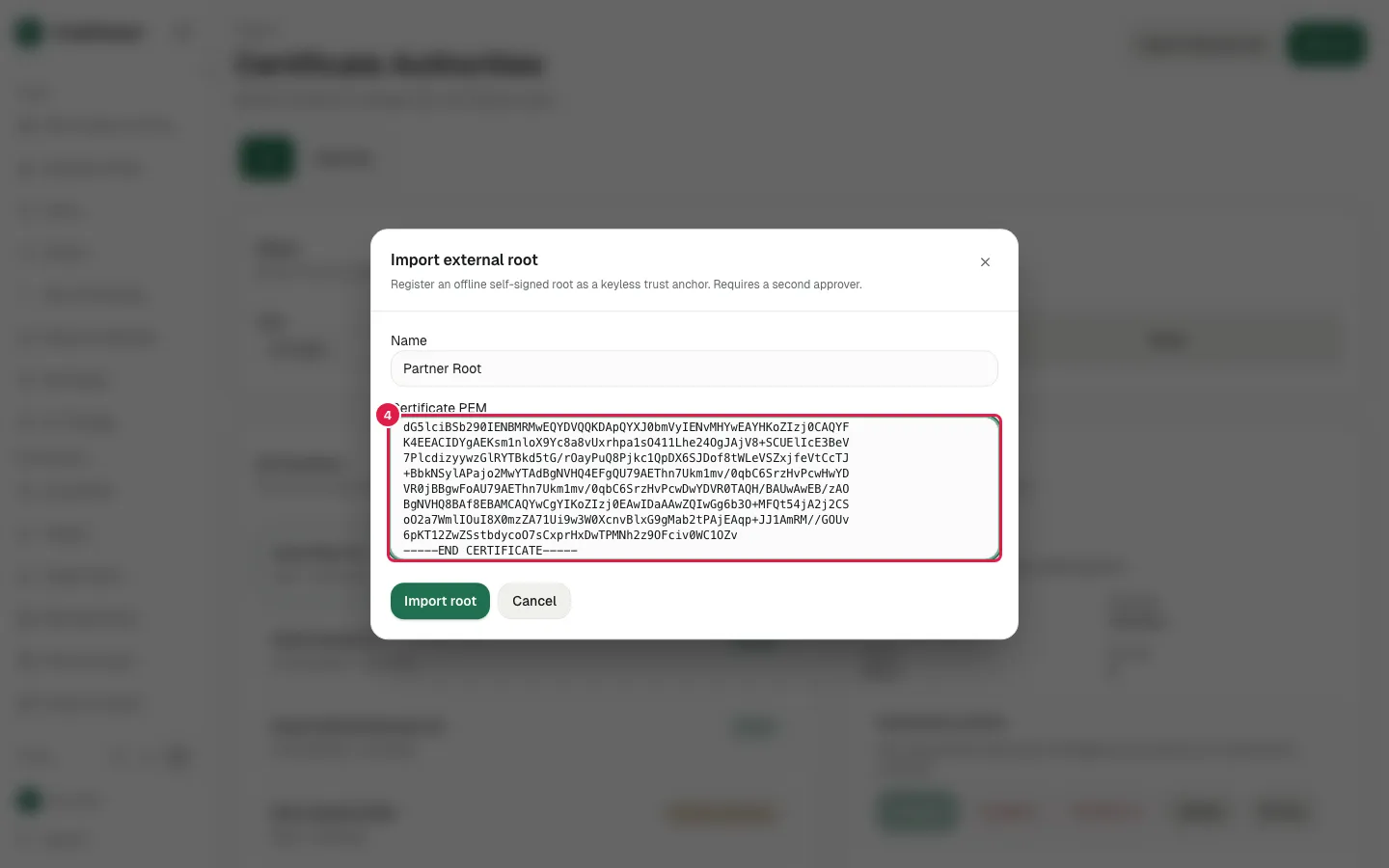
Certificate authorities Import an existing root
Import a root you already trust as a trust anchor.
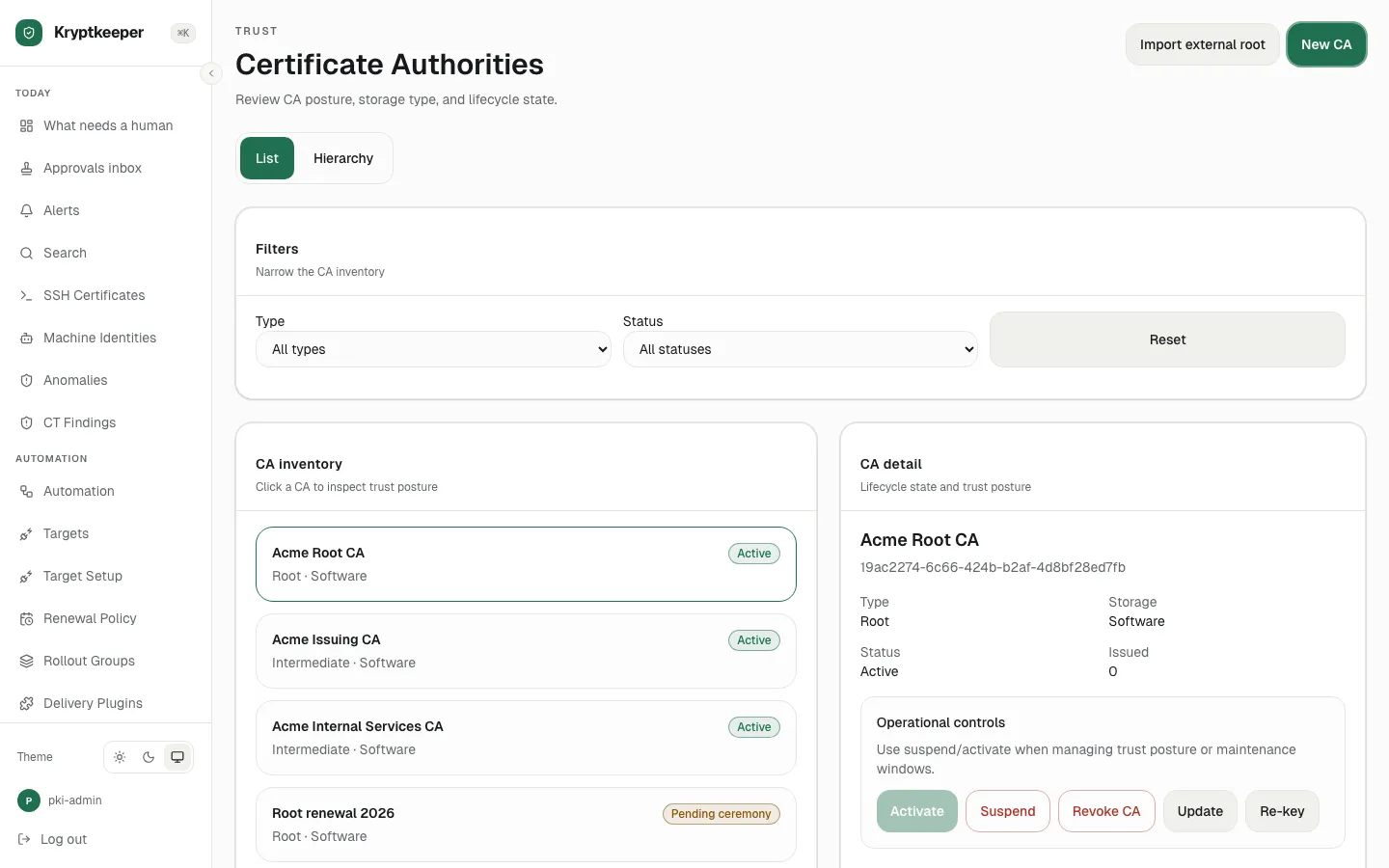
Windows and Active Directory Create the issuing CA for the domain
Create the intermediate CA that will sign your domain certificates.
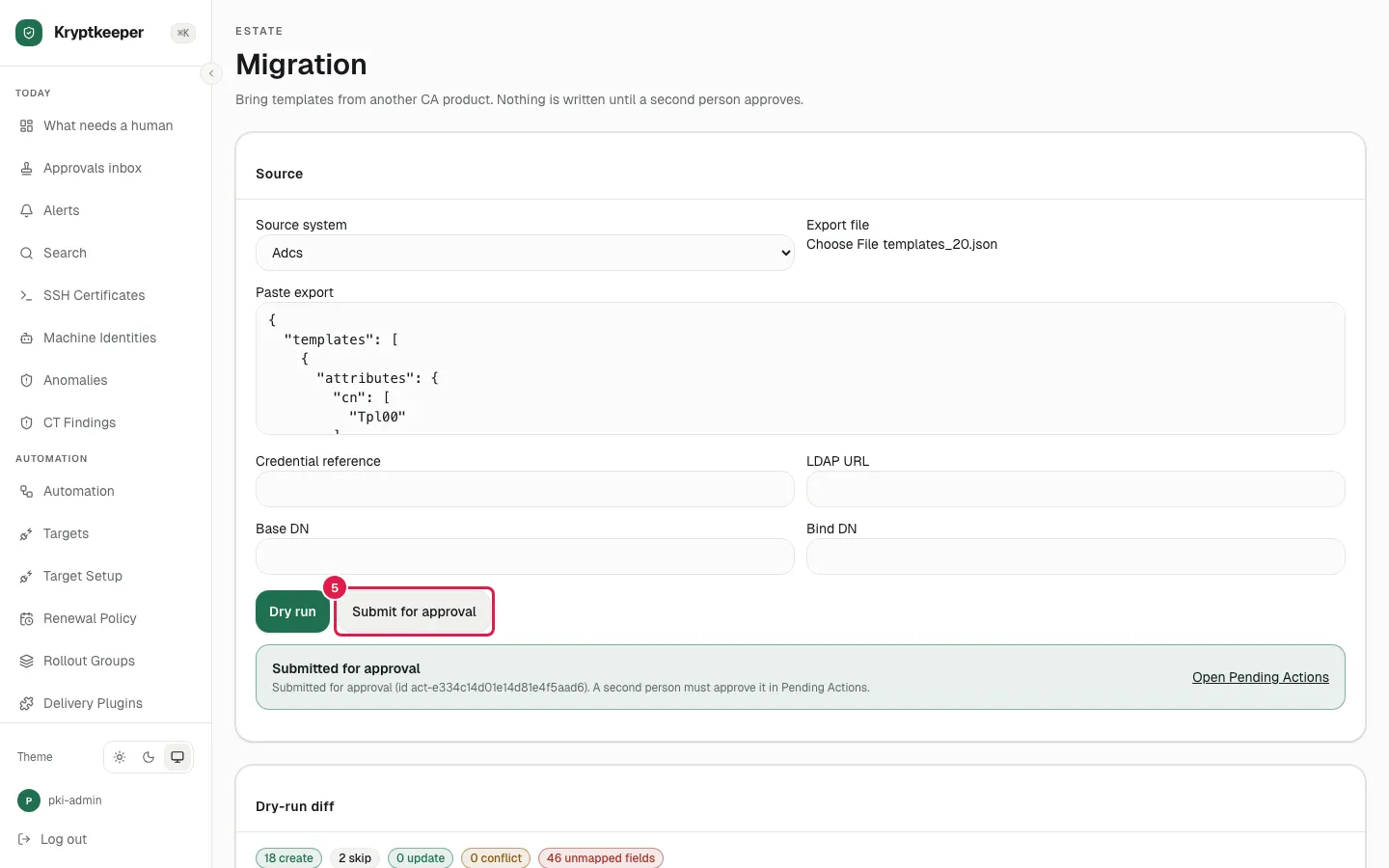
Windows and Active Directory Import templates from ADCS
Bring your existing ADCS templates across instead of rebuilding them.
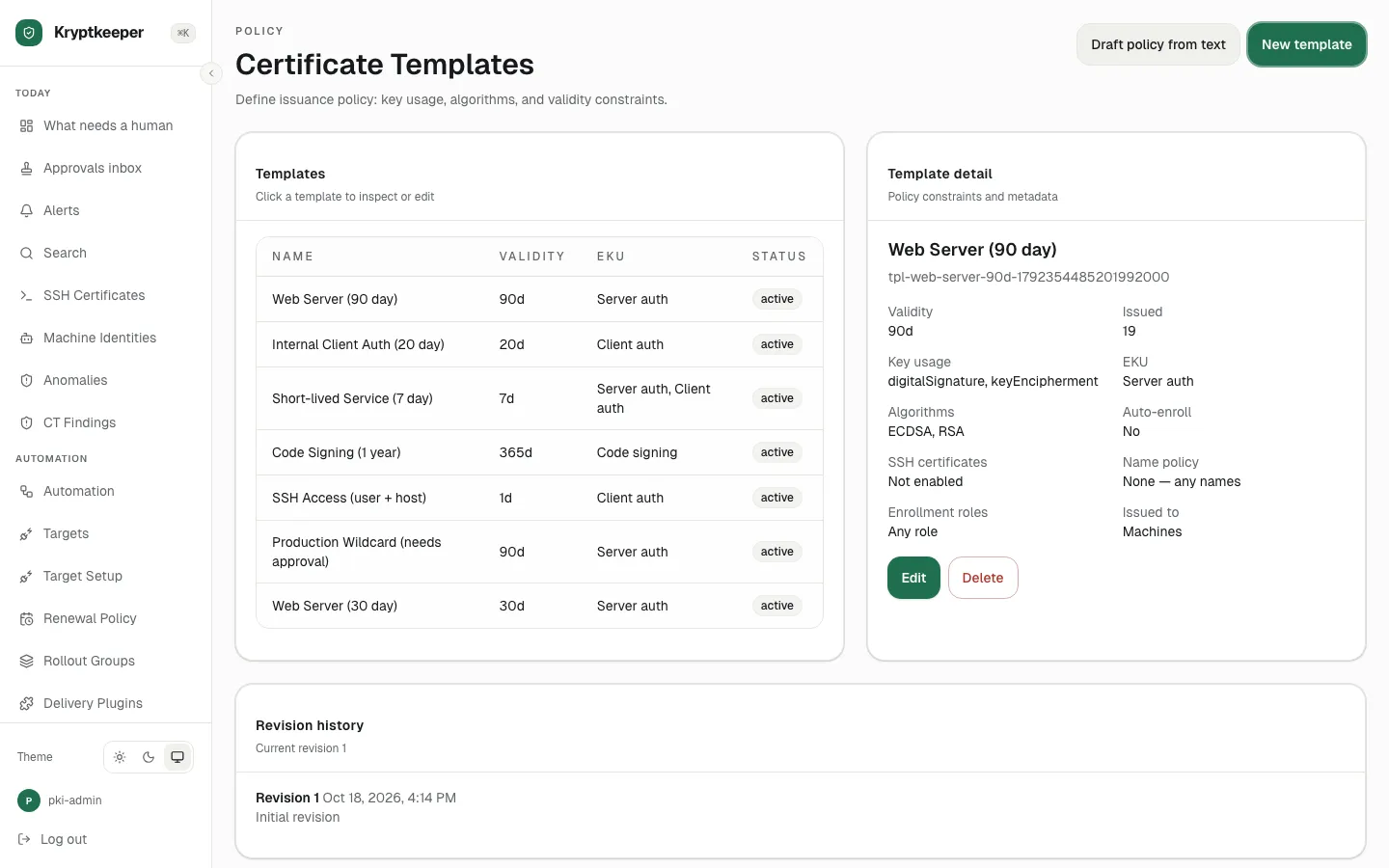
Windows and Active Directory Create machine and user templates
Create a template and choose whether Windows offers it to machines or users.
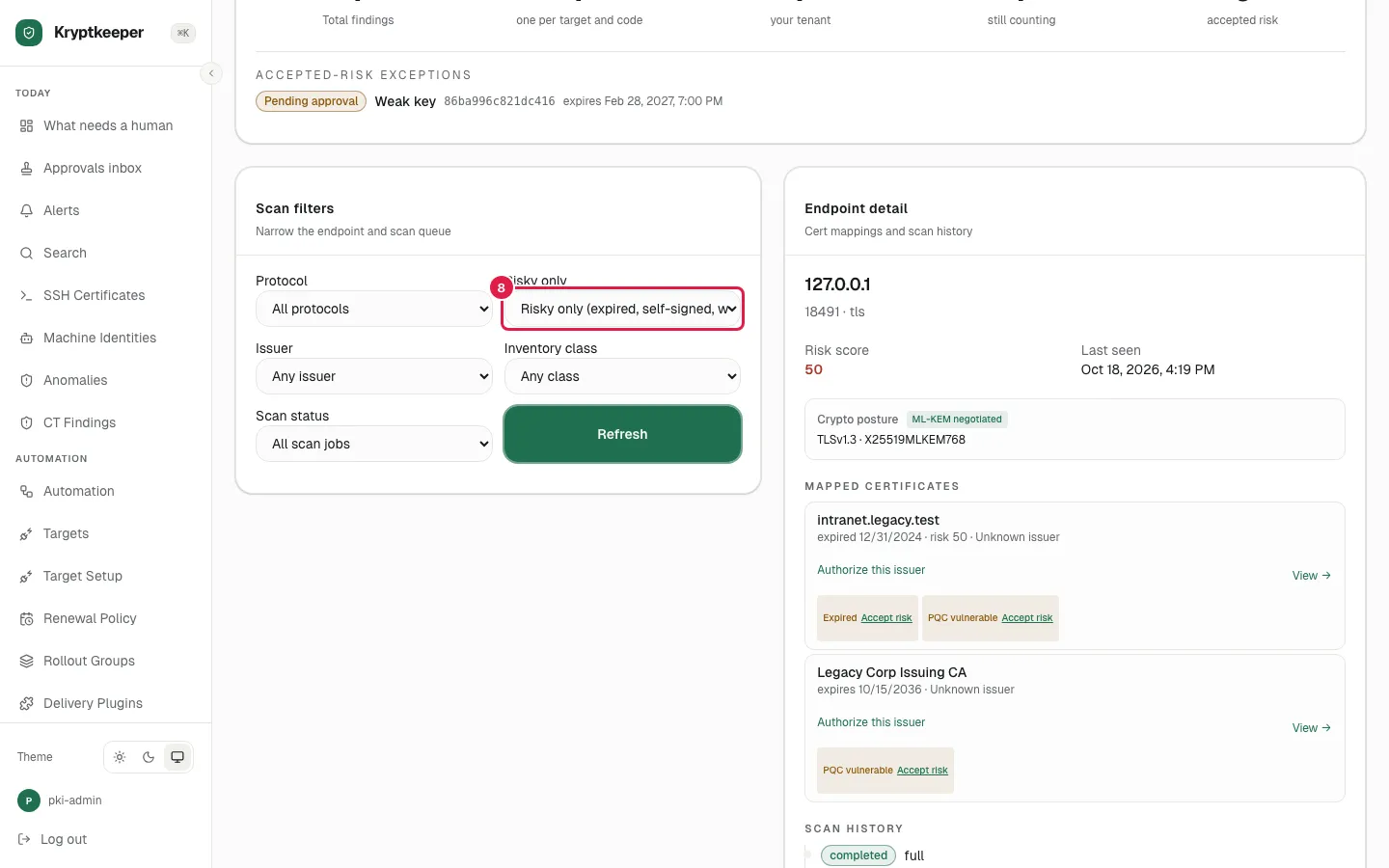
Windows and Active Directory Scan Windows certificate stores
Find the certificates already sitting in your Windows machine stores.
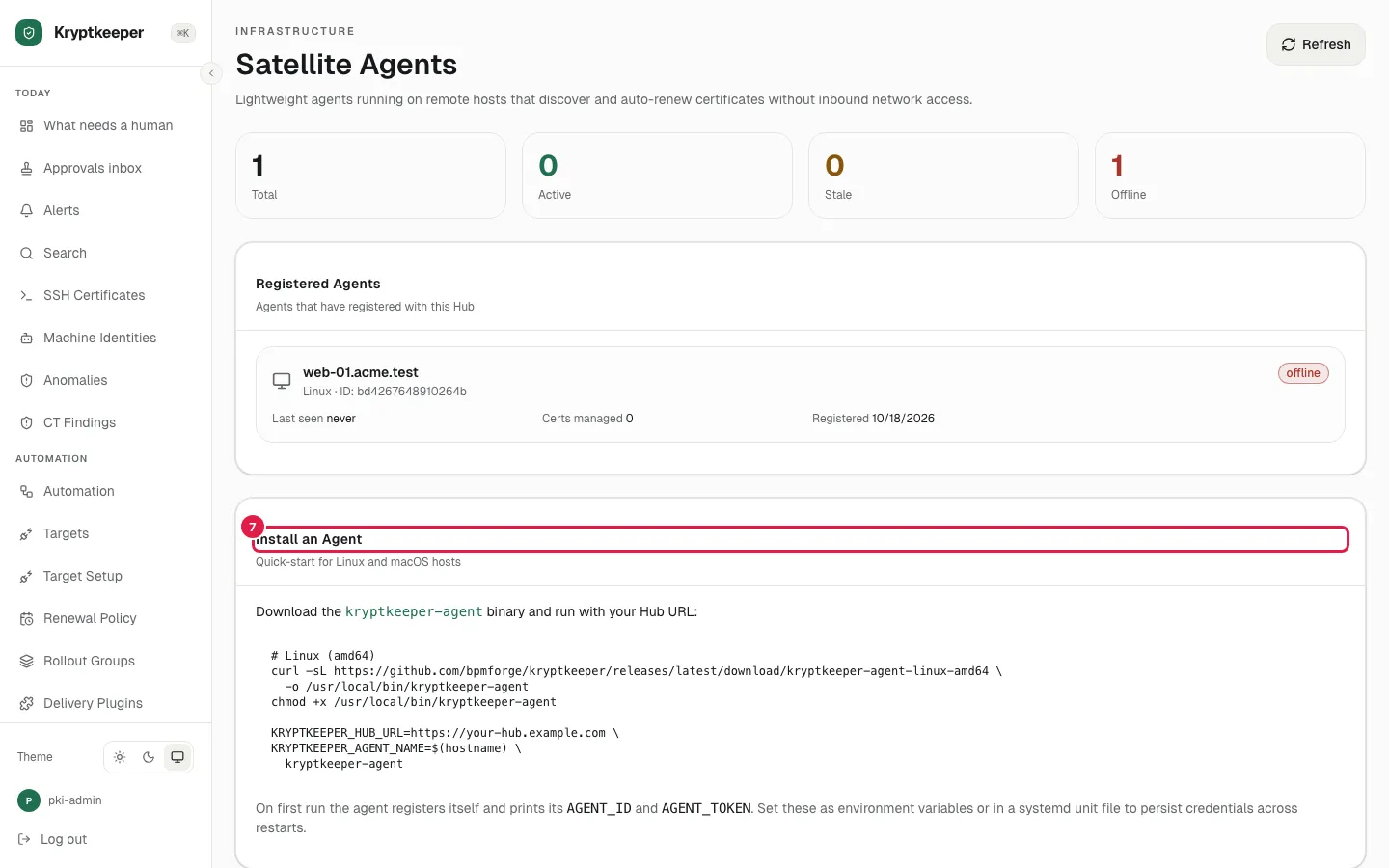
Windows and Active Directory Enroll the Windows agent
Enroll an agent that installs and renews certificates on a Windows server.